Anime character layering
Original character Nori. Drag Nori, hide the name, or move the book.
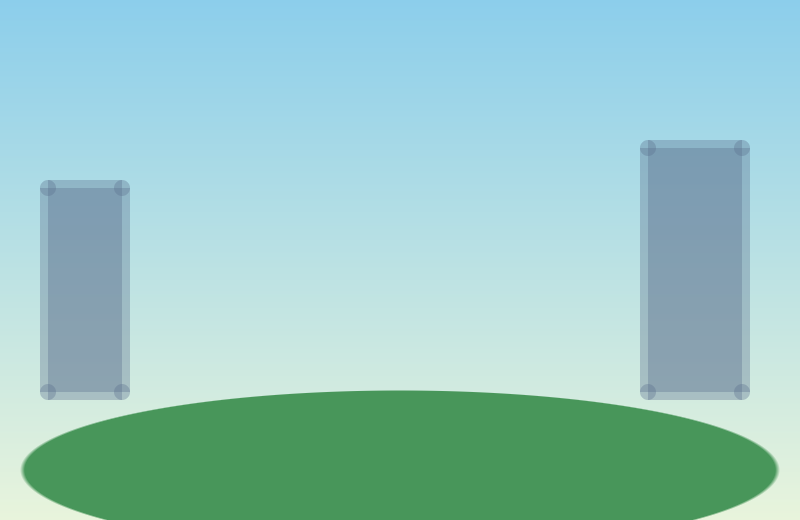


Sample layers you can click, hide, and drag. Your own image is split in the editor.
Character into layers
A character-into-layers pass splits a flat character drawing into raster pieces such as hair, face, clothing, and background so you can export a PSD or a PNG ZIP.
Use it when the next step is your own animation or editing app. The export is pixels with transparency, not a bound character.
Last updated
Drop an image to split it into layers
Separate the subject, text, and background, then move or resize any layer.
1
Use a clear JPG, PNG, or WebP under 10 MB. A standing figure on a simple ground separates more cleanly than a crowded action scene.
2
Toggle one layer at a time. Write down where the hair, the face, the outfit, held props, and the background landed. Do not assume a fixed seven-part anatomy.
3
Recolor the outfit for 3 credits if the shape should stay. Replace that layer for 4 credits only when the garment itself should change, and look again at the face.
4
Download the PSD or the PNG ZIP and continue there. Save the project first so you can reopen the stack without paying for another split.
Check whether those regions actually landed on different layers before you edit one of them.
Hiding the character should show a filled plate, not a hole the shape of the body.
The same 2K split costs 5 credits and includes both files. It does not bill per body part.
Start with the silhouette. Hide every layer except the background. If the fill behind the figure continues the scene, the plate is usable. If it invented a second character or a smear where the body was, do not hand that file to the next person as finished art.
Then solo the face. If the eyes and the jaw are inside the same layer as the jacket, an outfit edit will touch the face. Stop and either edit nothing, or replace only a layer that you have confirmed does not contain the face. Edit an AI-generated image is the same caution when the source was generated rather than drawn.
Hair is the usual failure. Fine strands, bangs over the eyes, and hair that crosses a collar often stay attached to the face or the clothes. A transparent PNG of that fused piece is still a useful export. It is not a separate physics group.
Image to layers is the general separator for posters, products, and scenes. This page is the inspection order for a figure: face first, then clothing, then props, then the ground. JPG to PSD with layers is the same stack when the handoff file must open in Photoshop.
Text on a character, such as a name badge or a shirt graphic, is still pixels. Edit text can retype a line that separated. Remove text hides it. Neither step recovers a font, and neither step binds the figure.
Open the result in PhotoCraft when you need a mask or a blend mode before you leave the browser. Arranging layers there does not charge another 5 credits.
The PNG ZIP is a set of aligned raster images. The PSD is the same stack with transparency, order, and visibility. You import those files into the application you already use. You still draw meshes, set deformers, and add parameters there.
This product does not create Live2D Cubism parts, meshes, deformers, or parameters, and it does not export a Spine project. If a page, a title, or a search result promised a one-click rig, that description is wrong. The honest deliverable is the layered raster file.
A flat 5-credit split does not get more expensive because a figure came back as many pieces. Failed splits are refunded. A guest 1K preview cannot be exported.
Original character Nori. Drag Nori, hide the name, or move the book.
Sample layers you can click, hide, and drag. Your own image is split in the editor.
No. You get transparent raster layers in a PSD or a PNG ZIP. Meshes, deformers, and parameters stay in your animation app.
Only when the picture separates that way. Overlapping bangs and collars often stay together. Look at each layer before you edit.
Yes, if the outfit is its own layer. Recolor costs 3 credits and keeps the shape. If the face is on that layer, do not run the edit.
The 2K split is 5 credits and includes the PSD and the PNG ZIP. You are not billed per body part. Replace, if you use it, is 4 credits on the selected layer.
Yes — you can split one image per day at 1K without an account to preview the layers. Full-resolution 2K layers and PSD/PNG ZIP export use 5 credits per split.
A layered Photoshop PSD where every element is its own named, transparent layer at its original position, or a ZIP of transparent PNGs plus a composite.
Posters, product shots, social graphics, characters and AI-generated images with clear subjects. Very busy photos can merge small details into one layer.
Credits are refunded automatically when a split fails or times out.
Uploads are used only to create your layers and are not shown publicly or used for training.
Yes, you can use exported layers from your own images in commercial work.