Poster text editing
Title, date, and price are separate layers. Hide one or drag it.


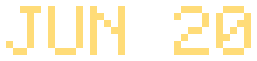

Sample layers you can click, hide, and drag. Your own image is split in the editor.
Edit text in an image
Edit text in an image means the words are lifted onto a layer so you can type a new line, recolor the letters, hide them, or replace that layer — without regenerating the picture.
Separate the words from the picture, then move, hide, recolor, or replace that layer. This is the same job as changing or replacing text in an image.
Last updated
Drop an image to split it into layers
Separate the subject, text, and background, then move or resize any layer.
1
Posters, ads, product labels, and screenshots with readable type separate more cleanly than a photo of distant signage.
2
The words become a layer. If they touch a logo or a face, they may share that layer. Solo it and look.
3
Type the new wording. Pick a sans, serif, display, or mono font, plus size and color. The line is rasterized into the layer’s box.
4
Recolor is 3 credits and keeps the letter shapes. Replace is 4 credits and redraws the layer. Remove text hides the layer.
5
Save the project or download the PSD. PhotoCraft can keep editing the stack in the browser. The original font file is not in the download.
Edit text types the new words into the layer. Replace still asks the image model to redraw it.
Drag the headline, date, or price without rebuilding the poster.
Turn the text layer off and keep the rebuilt background.
“Change text in an image”, “replace text in an image”, and “edit text in an image” are the same job, which is why those URLs redirect here. You select the text layer and you either type with Edit text or you ask Replace to redraw the layer.
Same-font editing is the request this tool will not fulfill. Edit text draws the words you type in a font you pick. It fits them to the layer box. It does not detect the original font file, it does not retape the original glyphs, and color is only sampled as a starting point you can change. If the brand face matters, finish the line in Photoshop or PhotoCraft with the real font.
There is no translator in the product. /translate-text-in-image redirects here because the mechanical job is identical once you already know the translated sentence. Hide the original line or type the new sentence with Edit text. The app will not look up a translation, and it will not keep the original font while it does so.
That limit is deliberate. A wrong translation baked into a poster is worse than a missing feature. Bring the approved line, then place it. Remove text if the old line should disappear and the background should show through before you add the new one.
The rest of the image is other layers. A product, a face, and a background stay where they were if you only edited the text layer. Recolor and replace are available when the words are not actually text but a drawn headline that should be regenerated. Save the project. Open PhotoCraft for blend modes and a manual text tool.
The split that created the text layer is 5 credits at 2K and does not bill per word. Edit text itself types into the layer. Recolor and replace are the credit-priced redraws, at 3 and 4 credits. A failed split is refunded. The guest 1K preview cannot be exported.
Split the image and solo the text layer against the background. If you can read the words and the edges are not glued to a face, Edit text is the right control. Type the replacement, choose the nearest font, and set the size so the line fills the old box without colliding with the logo. The words are drawn into the layer. They are not a live text frame you can reopen in Illustrator.
Zoom to the edges. A halo from the old letters means the new line did not cover them. Increase the size slightly or hide the original with remove text and place the new line on top. Recolor is only for a color change of the existing glyphs, at 3 credits. It will not fix a spelling error, because it keeps the letter shapes.
Translation is the same UI with a sentence you already trust. The redirect from /translate-text-in-image exists so that search does not land on an empty promise. Paste the approved translation. Do not expect the app to know the language or to keep a handwritten script. For a poster-specific pass, continue on edit poster text. For a label on a bottle, continue on edit a product image.
Save the project, then export. PhotoCraft can set a font you install locally if the four built-in choices are not close enough. That is still manual typesetting. The 5-credit split is what created the layer. Typing into it is not billed per character.
Tell the reviewer the font is one you chose, not the font that was in the picture. That single note prevents a round of “make it the exact brand face” that this page cannot do. If they have the font files, the PSD plus PhotoCraft or Photoshop is the finish. If they do not, the raster line is the deliverable. Same-font URLs redirect here so that limit is on the page they land on, not on a thinner duplicate. A translated line follows the same rule: you paste the approved sentence, and the app does not look the language up.
Title, date, and price are separate layers. Hide one or drag it.
Sample layers you can click, hide, and drag. Your own image is split in the editor.
Automatic font matching and automatic translation are not available.
Yes. Select the text layer, choose Edit text, and type. Set the font, size, and color. The result is rasterized into that layer.
The search is the same. In the product, Edit text types the line, and Replace redraws the layer for 4 credits.
No. /translate-text-in-image opens this page. You supply the translated words.
No. Pick a similar font. Exact font matching is not available.
You can still Replace the larger layer, with less precision, or remove a wider area than you wanted.
They redirect to this page. The job is the same. Edit text types the line. Replace redraws the layer for 4 credits.
Yes — you can split one image per day at 1K without an account to preview the layers. Full-resolution 2K layers and PSD/PNG ZIP export use 5 credits per split.
A layered Photoshop PSD where every element is its own named, transparent layer at its original position, or a ZIP of transparent PNGs plus a composite.
Posters, product shots, social graphics, characters and AI-generated images with clear subjects. Very busy photos can merge small details into one layer.
Credits are refunded automatically when a split fails or times out.
Uploads are used only to create your layers and are not shown publicly or used for training.
Yes, you can use exported layers from your own images in commercial work.