Anime character layering
Original character Nori. Drag Nori, hide the name, or move the book.
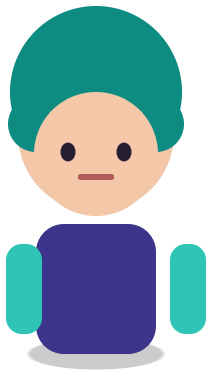

Sample layers you can click, hide, and drag. Your own image is split in the editor.
Live2D parts separation
Live2D parts separation (パーツ分け) is the step where a finished character illustration is cut into the pieces a rigger needs, such as front hair, back hair, face, eyes, body, and arms, with hidden areas painted in, before the PSD is imported into Live2D Cubism.
Manual parts separation can take days. Image Layered gives you the coarse cut and the inpainted areas behind it in minutes, so your artist starts from separated blocks instead of a single flat layer.
Last updated
Drop an image to split it into layers
Separate the subject, text, and background, then move or resize any layer.
1
Use the full-resolution, front-facing standing pose you plan to rig. Crop out the background if you do not need it.
2
Solo each layer and write down which rig parts it contains, for example “hair front + back together”.
3
In your art app, split eyes, brows, mouth, and the front and back hair from the returned layers, and paint the areas under them.
4
Use your rig naming convention, merge clipping groups as Cubism expects, and import the PSD.
Character, hair, outfit, props, and background come back as separate transparent layers you can keep cutting.
The background behind the figure is reconstructed. Fill under hair and arms still needs your artist.
Layer order and transparency are kept, so the file goes straight into your Photoshop or Clip Studio Paint cleanup pass.
The slow parts of Live2D prep are isolating large regions, painting the background behind the body, and keeping everything aligned at the original position. A layer split does those in one pass. You get a stack where the figure is already off the background and the major regions are separated.
The fine parts are still manual: eye whites, irises, lashes, and the mouth interior; front, side, and back hair strands; the neck under the chin; and the painted fill under every overlapping piece so it can move without showing a hole. No current one-click tool produces a rig-ready Cubism PSD, and any page that promises one should be tested before you trust it.
After the split: 1) Keep the original canvas size; Image Layered returns layers at their original positions. 2) Duplicate the face layer before cutting eyes and mouth so you can repaint the skin under them. 3) Split hair into front, side, and back from the hair layer; paint the scalp where front hair covered it. 4) Separate arms at the shoulder and paint the torso under them. 5) Flatten effects and clipping masks, which Cubism does not import as live effects.
Then import the PSD in Cubism Editor and build meshes and deformers there. For a VTuber model, the VTuber model prep page adds the expression and tracking parts you will need.
Front-facing standing art with arms slightly away from the body, hair that does not fully cover the face, and a simple background separates best. Dynamic poses, crossed arms, and dense hair over the eyes merge more pieces together.
If you are commissioning new art for a model, ask for a layered file from the start. Use this tool when you only have the flat image, when the original PSD is lost, or when you want a fast prototype rig before paying for full separation.
Original character Nori. Drag Nori, hide the name, or move the book.
Sample layers you can click, hide, and drag. Your own image is split in the editor.
Cubism will open the PSD, but it is not rig-ready. Treat it as the coarse cut and finish the parts separation in your art app first.
It removes the background isolation, the main region cutting, and the background repaint. Fine face and hair parts are still manual, which is usually the longest step.
Sometimes, when they do not overlap the face much. Check the solo view; often they come back as one hair piece.
One free 1K preview split per day without an account, watermarked and not exportable. A full 2K split is 5 credits and includes both the PSD and the PNG ZIP, whatever the layer count. Credits come back automatically when a split fails. The 100-credit Starter pack is a one-time payment, not a subscription.
Yes — you can split one image per day at 1K without an account to preview the layers. Full-resolution 2K layers and PSD/PNG ZIP export use 5 credits per split.
A layered Photoshop PSD where every element is its own named, transparent layer at its original position, or a ZIP of transparent PNGs plus a composite.
Posters, product shots, social graphics, characters and AI-generated images with clear subjects. Very busy photos can merge small details into one layer.
Credits are refunded automatically when a split fails or times out.
Uploads are used only to create your layers and are not shown publicly or used for training.
Yes, you can use exported layers from your own images in commercial work.