E-commerce ad poster
Click the price, headline, or shoe. Hide a layer or drag it.



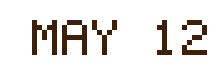
Sample layers you can click, hide, and drag. Your own image is split in the editor.
Remove text
Remove text from an image by splitting the words onto their own layer and hiding that layer, so the rebuilt background shows through instead of a smeared erase.
The split puts text on its own layer and rebuilds the background behind it. Hide the headline, price, or date and the words leave with that layer.
Last updated
Drop an image to split it into layers
Separate the subject, text, and background, then move or resize any layer.
1
Posters and product labels with a clear line of type are the reliable case. A photo of a distant street sign is not.
2
The line becomes a layer. The background plate is filled where the letters sat.
3
Remove text turns that layer off. You are not painting with an eraser.
4
Patterns, faces, and other type behind the line are the places the fill can look soft. Zoom in.
5
Download the PSD, or use Edit text if a new line should occupy the same box. Save the project either way.
There is no eraser brush. Hiding the text layer is the removal.
The plate behind the type is rebuilt during the split.
Show the layer again if you hid the wrong line.
Eraser tools and many “remove text” models paint over the letters and invent the pixels underneath in one pass. This app separates first. If the letters are their own layer, hiding them reveals the background that was already filled during the split. You can turn the layer back on.
That is why Edit text in an image and remove text are neighbors. Edit text writes a new line. Remove text only hides the old one. Use both when a poster must lose one language and gain another: hide, check the plate, then type the approved translation. The app still will not translate.
The fill is a reconstruction of whatever the letters covered. A flat color or a simple gradient usually looks clean. A face, a barcode, a second line of type, or a fine pattern behind the words will not be perfectly restored. If the text never separated, hiding a nearby layer will remove more than the words.
There is no brush to patch a bad fill. Replace (4 credits) can redraw a layer when hiding is not enough, and it can also change more than you asked. Recolor does not remove text; it recolors a layer you keep.
Save the project before you export if you might restore the original line later. The hidden layer is still in the stack. PhotoCraft can open the PSD if you want to paint a small repair the automatic fill missed.
A full-resolution 2K split costs 5 credits and includes the PSD and the PNG ZIP. The price does not grow with the number of layers. Arranging a project and downloading a finished export do not add another charge. A failed or timed-out split is refunded. Guests can run one 1K preview a day and cannot export that preview.
Split the file and turn every layer off except the background and the text. Hide the text. What you see now is the removal. A flat poster background should look continuous. A photograph with the words across a face should look suspicious. Zoom before you export. There is no brush in the splitter to patch a bad fill, so this inspection is the quality gate.
If the fill is good and a new line must occupy the same place, switch to edit text and type it. If the fill is good and nothing should replace the words, export. If the fill is bad because the letters never separated, do not hide a larger layer and call it done. Either replace that larger layer for 4 credits, knowing it will redraw more than the type, or open the PSD in PhotoCraft and mask it yourself.
Watermarks and repeated captions are the case to refuse. If the words are stamped across the subject and the background, they will not be one toggle. Say that before the split when you can see the pattern, and still check after, because some captions do separate. The cost of finding out is the 5-credit split, refunded if the job fails, not refunded merely because the text was fused. Fusion is a limit of the picture, not a failed task.
Save the project with the text hidden rather than flattening immediately. A client often asks for the words back. The hidden layer is how you restore them without another upload. Guest 1K previews cannot be the file you send.
Export with the text hidden, and keep the saved project with that layer still present. The person who receives only a flat PNG cannot put the words back. The person who receives the project can. Describe the fill in one line: clean on a flat color, or soft where the type crossed a face. Removing text from an image is finished when that sentence is true on screen, not when the letters are merely hard to see.
If a new sentence must replace the old one, do not leave a hole and a separate text box that ignores the perspective. Either type into the same layer with Edit text or accept that the perspective will be rebuilt by hand in PhotoCraft. The splitter will not reproject type onto a curved label. On a flat poster, hiding the line and typing the new one in the same box is enough, and it still costs only the original split unless you also recolor or replace.
If the line you removed was a price, look at the digits that might remain in a shadow or a second copy of the offer. Hiding one layer does not hunt the page for duplicates. Solo the rest of the stack and hide any leftover numerals before you export the PNG.
Click the price, headline, or shoe. Hide a layer or drag it.
Sample layers you can click, hide, and drag. Your own image is split in the editor.
No. Remove text hides the layer. Edit text types a new line into it. Both start from the same split.
No. The letters are a layer. Hiding them shows the background plate filled during the split.
Yes. Show the layer again, or return to the saved project.
The split is 5 credits at 2K. Hiding the text layer does not add a per-letter charge.
Yes, when they are different layers. If they share a layer, hiding it removes both lines.
Yes — you can split one image per day at 1K without an account to preview the layers. Full-resolution 2K layers and PSD/PNG ZIP export use 5 credits per split.
A layered Photoshop PSD where every element is its own named, transparent layer at its original position, or a ZIP of transparent PNGs plus a composite.
Posters, product shots, social graphics, characters and AI-generated images with clear subjects. Very busy photos can merge small details into one layer.
Credits are refunded automatically when a split fails or times out.
Uploads are used only to create your layers and are not shown publicly or used for training.
Yes, you can use exported layers from your own images in commercial work.