
Problem
Variation tools can shift the subject, crop, perspective, lighting, or visual hierarchy. That creates another review cycle instead of solving the note.
Composition-safe editing
Many AI images are approved because of their exact framing. When a client asks for a small change, you need to edit without changing the composition, not generate a new direction.
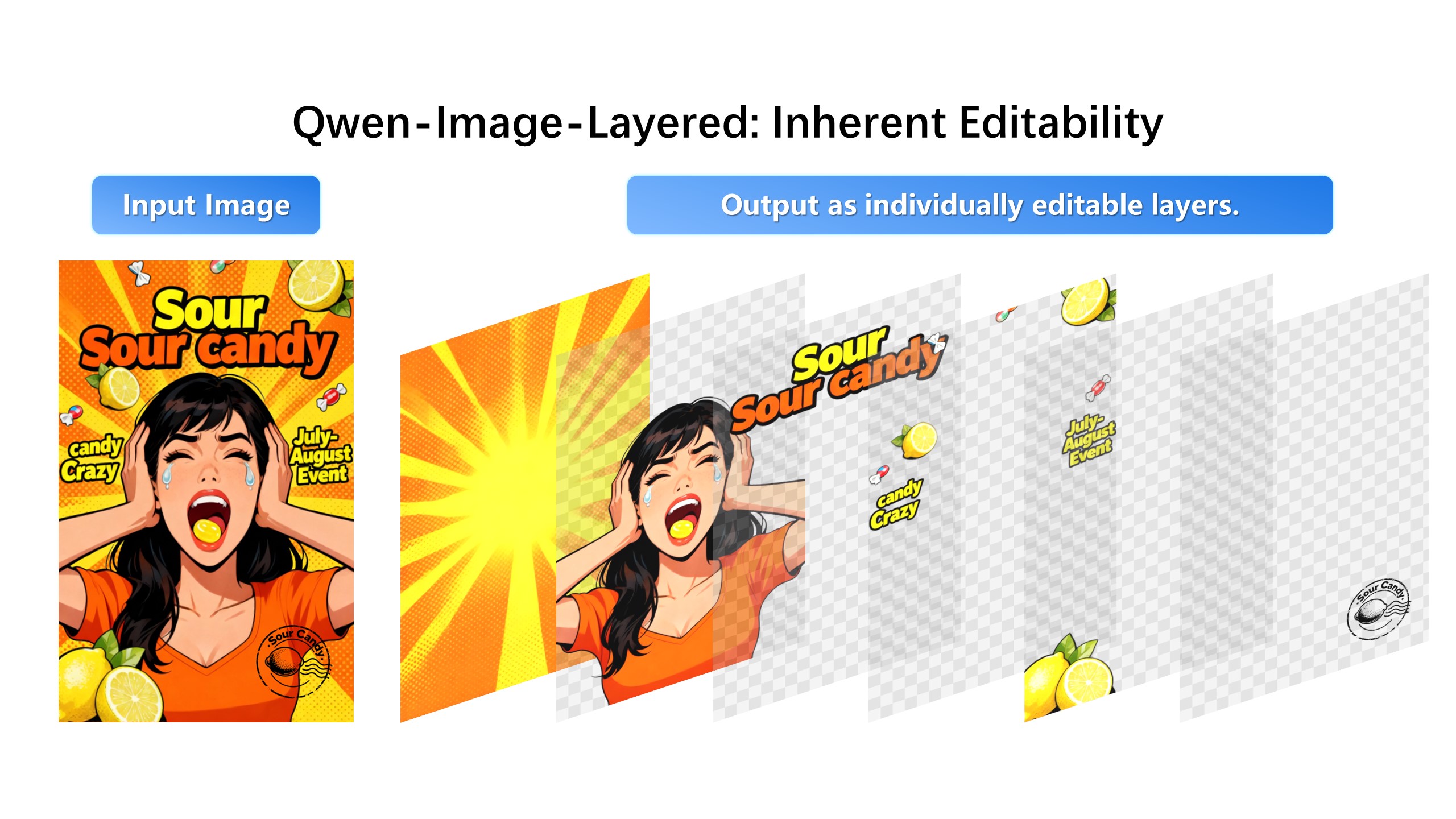
Keep composition, camera angle, and subject position exactly the same.
Variation tools can shift the subject, crop, perspective, lighting, or visual hierarchy. That creates another review cycle instead of solving the note.
Layer-based editing lets you isolate the requested change and keep the rest of the image as the anchor for the final composition.
Ask a generator for the same image with one change and you get a different camera, a different crop, different proportions. The layout you art-directed is gone. Layer editing holds composition structurally: position and scale of every unselected object persist because their pixels persist.
Controlled edits are only credible when you can verify them. The workspace keeps the original and the revised composite side by side, so approving a change means confirming nothing else moved — not squinting at two generations to find what broke.
Storyboard frames, ad layouts with locked legal placement, product hero shots, and series covers: any work where the frame itself is approved and only the content inside it changes. That is exactly the contract layer-based editing enforces.
1. Upload the approved image.
2. Create layers for subject, background, text, and effects.
3. Select only the part mentioned in the revision note.
4. Apply the edit and compare the result with the original.
Because regeneration is useful for exploration, while layer editing is better for controlled revision after approval.
The product workflow is built around preserving a base image, editing selected layers, and exporting the recomposed result.
Split it into layers first. The decomposition step rebuilds the image as separate objects — subject, background, text, effects — so your instruction reaches one layer while the others keep their exact pixels, position, and scale.
Full-image editing regenerates every pixel, so framing, proportions, and lighting get re-sampled each run. Layer-based editing keeps the unchanged layers fixed and only re-synthesizes the selected object, which is why the composition survives.